How to calibrate your screen
Check your illustration at 100% with a ruler, with tips for changing screens, downloading and printing.
The same illustration can look larger on one screen than another. Calibrating with a ruler brings the displayed scale closer to real-world size on the device you're using.
1. Open the calibration tool
Create your illustration on the home page, then select “Calibrate screen.”
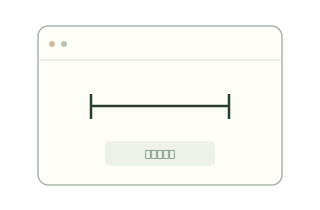
2. Measure and enter the value
Measure the reference line on screen with a ruler, then enter its length in millimeters.
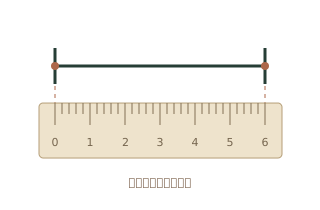
3. Apply the calibration and switch to 100%
Select “Apply calibration,” then “Actual size (100%).” Check the scale bar in the illustration with your ruler.
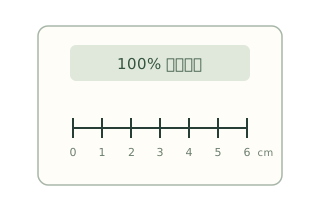
Things to keep in mind
- “Fit to screen” scales the image and usually does not represent actual size.
- If you change screens, browser zoom, or system display settings, check and recalibrate again.
- Screen calibration does not carry over to downloaded images; after viewing or printing, still check the scale bar with a ruler.
If you want to make a paper keepsake, keep the calibrated 100% view and follow the tracing guide. When tracing, place the paper gently and trace the outline lightly to avoid pressing on the screen.
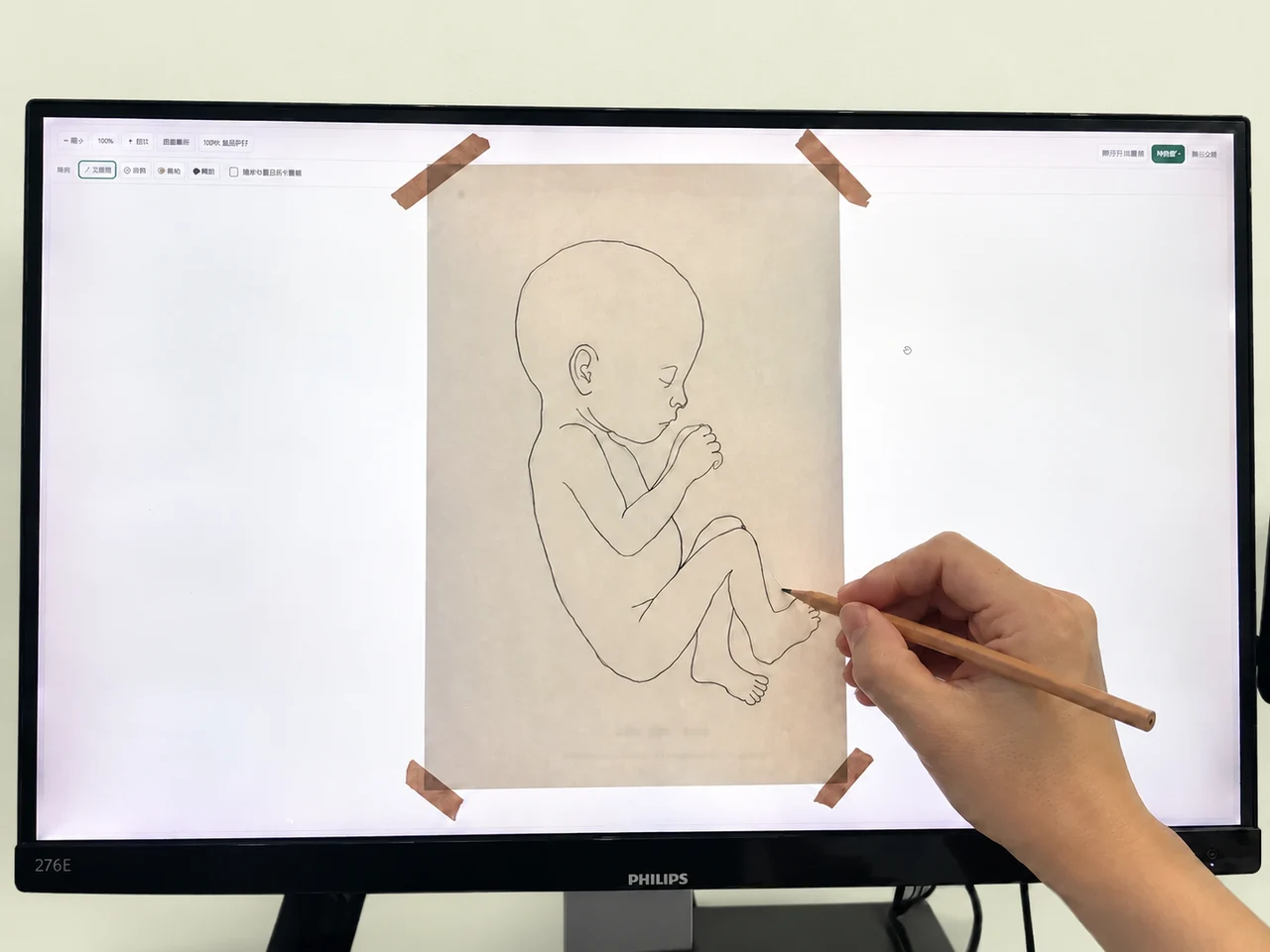
Calibration adjusts the displayed scale. The outline remains an illustration of size. For more information, see the four measurement diagrams and the guide to saving images and history.